

MP 3009X
Get A Quote
Getting an Allen‑Bradley Logix controller to cooperate when you need to upload its program can feel routine right up until the moment it doesn’t. On the plant floor, I see most “upload problems” fall into one of two buckets. Either Studio 5000 never gets far enough to talk, which is a communications and configuration issue, or Studio 5000 connects and then throws an error while trying to retrieve the project, which is a content and compatibility issue. The good news is that both classes of problems have well‑understood root causes and repeatable fixes. This guide lays out what works for me on site, grounded in what reputable sources and experienced practitioners have documented.
In Allen‑Bradley parlance, an upload is copying the project that’s in the controller to your laptop, while a download is pushing a project from your laptop to the controller. Uploads rely on three things lining up: your PC can discover and reach the controller over the correct path, FactoryTalk Linx (or RSLinx Classic) is set up with the proper driver and network adapter, and Studio 5000 can interpret what it reads from the controller based on firmware revision and the project’s metadata. If any of those pieces are missing or mismatched, the upload breaks down as a communications failure, a version mismatch, or a project read error.
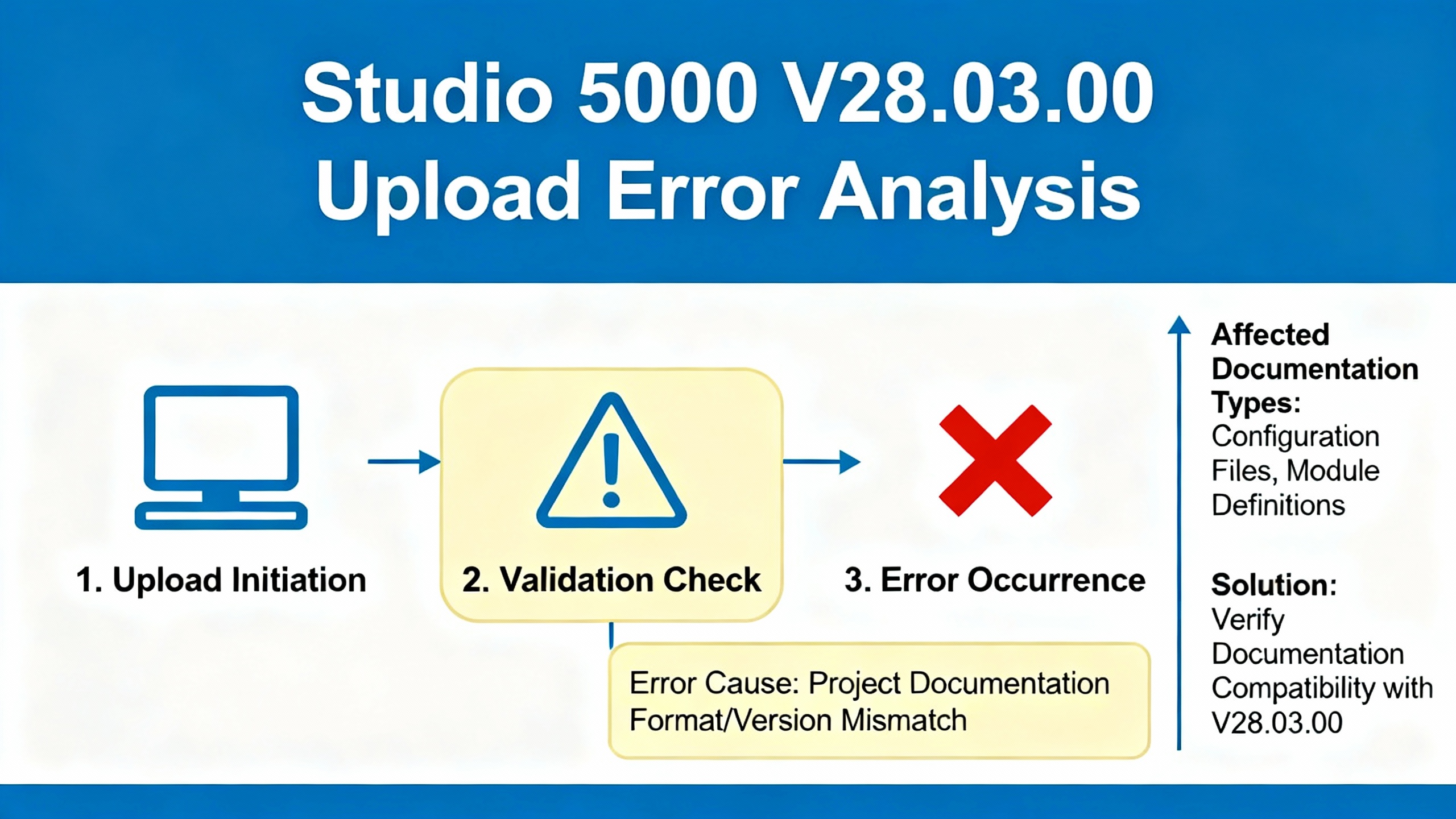
A specific and widely discussed upload failure affects Studio 5000 Logix Designer version 28.03.00. Practitioners reported that an upload can fail when certain symbols are present in project documentation, such as an asterisk at the beginning of a tag comment or other special characters like emoji or decorative symbols embedded in descriptions. The consequence is counterintuitive because you are not changing logic; you are simply trying to read the project out of the controller, but the metadata itself trips the upload.
Rockwell Automation published guidance on this through a TechConnect technote referenced by users on MrPLC.com. The practical remedy is to remove the problematic characters and then perform a controlled download. In other words, the fix happens during a download, not an upload. If you have the latest ACD file for that controller, clean the documentation fields in that ACD, and download the sanitized project back to the controller. An alternative is to uncheck the Download Project Documentation and Extended Properties option in the controller properties prior to the download, which omits the metadata that triggers the fault. There is an important safety caveat observed by practitioners and reflected in the guidance: do not disable documentation download on a safety controller that uses Add‑On Instructions. If you are maintaining a GuardLogix or similar safety platform that depends on documentation behaviors for safety‑related objects, follow the manufacturer’s direction and use the documentation‑cleaning approach instead of bypassing extended properties.
When you do not have the latest ACD, your best path is to locate any prior ACD from backups or a colleague and bring it up to parity with what’s running. Once you clean the comments and descriptions, schedule downtime for a download that preserves the safety requirements and project integrity.
Many uploads appear to fail simply because Studio 5000 never actually talks to the controller. In practice, this traces back to driver and pathing issues in FactoryTalk Linx or RSLinx Classic, network addressing, or firmware and project revision alignment.
FactoryTalk Linx provides the Who Active view that shows available communication drivers and the devices reachable through each driver. Continuous discovery can be enabled so the tool keeps finding devices, but discovery generally works only within a single IP subnet. If your PC is not on the same subnet as the controller, browsing will be empty or incomplete. It’s worth verifying that the Linx driver is bound to the NIC you are using and that your laptop has a static address on the PLC’s subnet. When browsing, a red X next to a device typically signals that it was seen before and is now offline, while a yellow question mark indicates the device is present but unrecognized because its Electronic Data Sheet is missing. Installing the correct EDS file resolves the latter. These behaviors are well documented in training content from RealPars and reflected across vendor practice.
Version alignment matters as well. Going online and performing downloads require that the project’s major and minor revision match the controller firmware. An upload attempt against a controller with a different revision often stalls out because Studio 5000 cannot interpret or negotiate the project metadata correctly. Before blaming the controller, confirm the installed Studio 5000 revisions and that your project file matches the controller firmware.
If network auto‑discovery fails, take a path of least resistance. Ping the PLC to confirm basic reachability. Check link and activity LEDs on both ends. Try a different cable. If the device has lost its IP address or you cannot browse it on Ethernet/IP, recover it over USB or use BOOTP/DHCP to assign a static IP. Firewalls and antivirus tools on the engineering laptop can block discovery and upload traffic; it’s acceptable, in a controlled industrial network, to temporarily disable or create exceptions to test the path.

A surprising number of PLC “upload failures” have roots in power, grounding, I/O health, EMI/RFI, and thermal stress that interrupt communications long enough to derail a session. Industrial sources note that a large share of control system failures are linked to field devices, I/O modules, or power supply problems, and that noise, grounding, and heat are recurrent contributors. Some plants also report short, unpredictable losses of HMI data that can correlate with concealed controller restarts, including watchdog‑triggered reboots that are not visible to regular operators. Those events are brief, but they sever communications long enough to ruin an upload and create the illusion of a software problem.
Basic discipline keeps those gremlins at bay. Stable power and backup ride‑through, proper bonding and low‑impedance grounds, shielded and segregated wiring near noisy loads, and keeping controllers within their temperature and humidity limits will reduce spurious faults and intermittent drops. When comms die randomly for a few seconds, treat it like a system event first and an IDE bug second.

| Symptom in the field | Likely cause | What to look for | Practical fix | Source |
|---|---|---|---|---|
| Upload fails in Studio 5000 v28.03.00 even though controller is reachable | Special characters in project documentation (comments, descriptions) | Tag comments beginning with an asterisk, decorative symbols, emojis in documentation | Clean the documentation in the latest ACD and download; or uncheck Download Project Documentation and Extended Properties before downloading when appropriate; do not uncheck for safety controllers with Add‑On Instructions | MrPLC.com referencing Rockwell Automation TechConnect |
| Controller visible but browsing is inconsistent; devices show unknown or offline | Wrong driver/NIC, missing EDS, subnet mismatch | Who Active shows yellow question mark or red X; PC on a different subnet; driver bound to Wi‑Fi instead of Ethernet | Bind driver to the correct NIC, install EDS, place laptop on the same subnet, remove offline devices; use a static IP plan | RealPars |
| Upload or go‑online blocked with revision errors | Project and firmware mismatch | Project revision does not match controller firmware major/minor | Install or switch to matching Studio 5000 revision; align project and controller firmware | RealPars |
| Upload stalls or fails intermittently | Power quality, EMI/RFI, overheating, or watchdog‑driven restart | Short comms loss for 6–20 seconds; environmental stress near panel; ground faults | Stabilize power with UPS and protection, verify grounding, improve shielding and separation, keep panels cool; investigate controller restarts | Automation.com, Automation & Control Engineering Forum |
| Frequent comms faults when adding or changing devices | Physical network issues or misconfigured infrastructure | Loose or damaged cables, unmanaged switches in harsh environments | Replace suspect cables, use industrial network components, validate terminations and switch health, maintain firmware | PDFsupply, Automation.com |
When I land at a line that refuses to upload, I assume nothing and close the loop from physical to logical. I start where success is easiest to prove: physical connectivity. I confirm link lights and swap in a known‑good patch lead. If the plant uses both wired and wireless NICs, I ensure FactoryTalk Linx is bound to the Ethernet adapter that actually sees the controller’s VLAN. I verify the engineering laptop’s IP sits on the same subnet as the PLC and that no duplicate IP is lurking on the network. A quick ping tells me whether the path is alive. If discovery shows a yellow question mark, I install the correct EDS so Linx recognizes the device fully.
Once I can browse consistently in Who Active, I match versions. If the controller’s firmware reports a revision I don’t have installed, I switch Studio 5000 versions or install the needed minor revision before attempting the upload. Only when those pieces are right do I try the upload. If it fails immediately and I’m on Studio 5000 v28.03.00 or similar behavior is suspected, I consider the documentation issue: locate the latest ACD, remove leading asterisks and other non‑standard symbols from tag comments and descriptions, and plan a safe download. I will not disable documentation download on safety controllers that rely on Add‑On Instructions behaviors; I stick with cleaning the metadata. If I cannot find a recent ACD, I escalate to the maintenance team to retrieve backups, which is usually the fastest way back to a clean project.
If uploads falter intermittently, I stop treating the laptop as the suspect and look at the system. Short communication gaps often point to power brownouts, ground faults, or interference. I assess power quality and ride‑through, look for bonding and corrosion problems, and check environmental controls in the cabinet. Thermal relief and clean power do more for day‑to‑day reliability than any software tweak, and they keep uploads from mysteriously timing out.
Unchecking the Download Project Documentation and Extended Properties option is a quick way to bypass documentation‑related failures, but it has tradeoffs. The immediate benefit is that it allows a download to complete without including metadata that can provoke the upload error later. The downside is loss of helpful documentation in the controller image, which can slow future maintenance or online troubleshooting that depends on comments and descriptions. On safety controllers that use Add‑On Instructions, bypassing documentation is specifically flagged as risky by practitioners who have worked through these cases, so the safer method is to sanitize documentation and preserve the extended properties.
Upgrading or aligning versions between the controller and Studio 5000 has the obvious upside of letting you go online cleanly. The tradeoff is that version changes should be tested and approved, especially in validated environments, because they can alter behaviors or break compatibility with legacy devices. Installing EDS files is low‑risk and pays off immediately by making devices visible and correctly identified in Who Active.
Using BOOTP or a USB pathway to recover a device with a bad or unknown IP speeds recovery and avoids network blind spots. The practical consideration is that BOOTP should be locked down afterward so address assignments do not drift, and USB access must be controlled under site cybersecurity practices.
Upload reliability improves when the surrounding ecosystem is designed for reliability. Industrial sources consistently emphasize investment in power quality and noise control. Install surge protection, isolation, and an appropriately sized UPS to ride through sags and outages. Maintain proper grounding and bonding and regularly inspect terminations for looseness or corrosion. Use shielded and segregated cabling around high‑power equipment and pick network hardware rated for the industrial environment rather than improvising with office gear.
Spare parts planning matters more than it seems when you are fighting an upload and the real culprit turns out to be a dying I/O module or a switch. Keep spares for common failure points and have a clear obsolescence plan for legacy components. In the software domain, keep a well‑labeled library of EDS files and a clear IP addressing scheme for all controllers, HMIs, and network devices. Finally, many official Rockwell Automation technotes live behind a support program; having that access can shorten resolution when you encounter platform‑specific behaviors like the documentation‑related upload failure.
| Term | Plain‑English meaning |
|---|---|
| Studio 5000 Logix Designer | Rockwell Automation’s engineering environment for ControlLogix and CompactLogix controllers formerly known as RSLogix 5000 |
| FactoryTalk Linx and RSLinx Classic | Rockwell communications utilities that provide drivers and browsing paths for going online with controllers |
| ACD file | The Studio 5000 project file; the artifact you download to or upload from a controller |
| EDS file | Electronic Data Sheet used by communications software to identify and talk to a device properly |
| EtherNet/IP | The industrial Ethernet protocol commonly used by Allen‑Bradley controllers, HMIs, and I/O |
| Add‑On Instruction | A user‑defined function block in Logix platforms; certain safety controllers have additional constraints |
| BOOTP/DHCP | Tools and protocols for assigning IP addresses, often used to recover a device with an unknown or default IP |

Short communication gaps during uploads can come from the plant, not the laptop. A power flicker that barely dims the lights can still interrupt the Ethernet stack long enough to trip a transfer. Ground loops and EMI/RFI near big motors and drives can corrupt packets, and hot summer days push enclosures above safe limits unless cooling and airflow are handled well. Reputable guidance stresses that most network outages have a physical origin and that disciplined inspection of connections, power, and grounding prevents the majority of these incidents. When a customer mentions six to twenty‑second dropouts between an HMI and a PLC, it is worthwhile to consider whether the controller is quietly restarting under watchdog or heat stress and then to validate with logs and diagnostics.
Squeeze reliability out of the basics first. Confirm the right Linx driver is chosen and bound to the correct NIC, ensure your laptop IP sits on the controller’s subnet, and verify pathing in Who Active. Install missing EDS files so devices are recognized rather than just appearing as question marks. Align the project and controller firmware revisions before attempting to go online. If you are on Studio 5000 v28.03.00 and uploads fail despite clean comms, sanitize documentation in the latest ACD and plan a controlled download, preserving safety constraints. Treat intermittent failures as an environmental issue until proven otherwise; inspect power, grounding, and panel conditions and remedy noise and heat problems. Keep spares for I/O and network hardware and maintain a known‑good library of EDS and project files. This non‑glamorous groundwork prevents the majority of so‑called upload problems.
A known behavior for that version is an upload failure caused by certain special characters in project documentation such as asterisks at the start of tag comments or decorative symbols in descriptions. Practitioners reference a Rockwell Automation TechConnect technote that explains the issue. Clean the documentation in the latest ACD and download, or omit documentation during the download using the controller properties option where it is safe to do so.
Yes, version alignment matters. The project’s major and minor revision must match the controller firmware to go online cleanly and to avoid version‑related errors during transfers. If you see revision complaints, switch Studio 5000 to the matching revision or install the required minor version.
A yellow question mark indicates that FactoryTalk Linx or RSLinx can see a device but does not recognize it because the Electronic Data Sheet is missing. Installing the appropriate EDS resolves that. A red X typically means the device was reachable before and is now offline; clearing offline devices and re‑scanning helps you focus on what is truly present.
That option can bypass metadata issues by not downloading documentation into the controller, and practitioners report success with it for non‑safety controllers. The tradeoff is that you lose in‑controller comments and extended properties. On safety controllers that use Add‑On Instructions, do not disable documentation download; instead, clean up the documentation in the project and keep those properties intact.
Short communication dropouts can stem from a controller restart or environmental stress such as power quality, EMI/RFI, or heat. Several sources point to power, I/O, and field device issues as common failure points. Check for watchdog restarts, stabilize power with a UPS and protection, verify grounding, and ensure the panel stays within temperature and humidity limits.
Start with FactoryTalk Linx driver selection and pathing, the network adapter bound to that driver, and whether your laptop is on the same IP subnet as the controller. Verify link LEDs and try a different cable. If needed, assign a known static IP using BOOTP or a USB connection, and install the device’s EDS so it shows up correctly in the browse.
Allen‑Bradley upload failures are frustrating but rarely mysterious. The majority resolve by getting the communications stack right in FactoryTalk Linx, aligning project and firmware revisions, and eliminating physically induced flakiness from power, grounding, and heat. For Studio 5000 v28.03.00, watch for project documentation symbols that can break uploads and remediate by cleaning comments and performing a controlled download rather than chasing ghosts. The plants that avoid chronic upload problems do not rely on heroics; they invest in power quality and noise control, keep their EDS and firmware houses in order, maintain spares for I/O and networking, and keep a clean archive of ACDs. That discipline turns uploads back into the uneventful maintenance task they should be.
This guide draws on practical notes from MrPLC.com users referencing a Rockwell Automation TechConnect technote, communications diagnostics explained by RealPars, reliability guidance from Automation.com, field troubleshooting checklists from PDFsupply, and community observations on intermittent comms from the Automation & Control Engineering Forum.


Copyright Notice © 2026 mooreautomated.com All rights reserved,Moore Automated is not an authorized distributor or representative of the manufacturers featured on this website. Brand names and trademarks featured are the property of their respective owners.
Leave Your Comment